
WhatsGroups: organize instances, groups and submissions without losing control
How to organize instances, folders, groups and messages in WhatsGroups and check what was actually sent before you enlarged the operation.

When there are several groups of WhatsApp, the risk is not just forgetting a message. It is selecting the wrong group, confusing which number meets each class and not knowing if a warning has arrived. I created WhatsGroups to make this operation readable: which instance sends, which groups receive, what message was prepared and what happened after?
In the current interface, these parts appear separated into instances, groups, messages, and monitoring. The Groups screen allows you to search, organize into folders, sync, import, and create groups. Each card relates a group to the instance and shows information such as number of participants and date of synchronization. The capture used to demonstrate this screen was made with user, instance and fictional groups. It shows the implemented interface, not a campaign sent or a real base of participants.
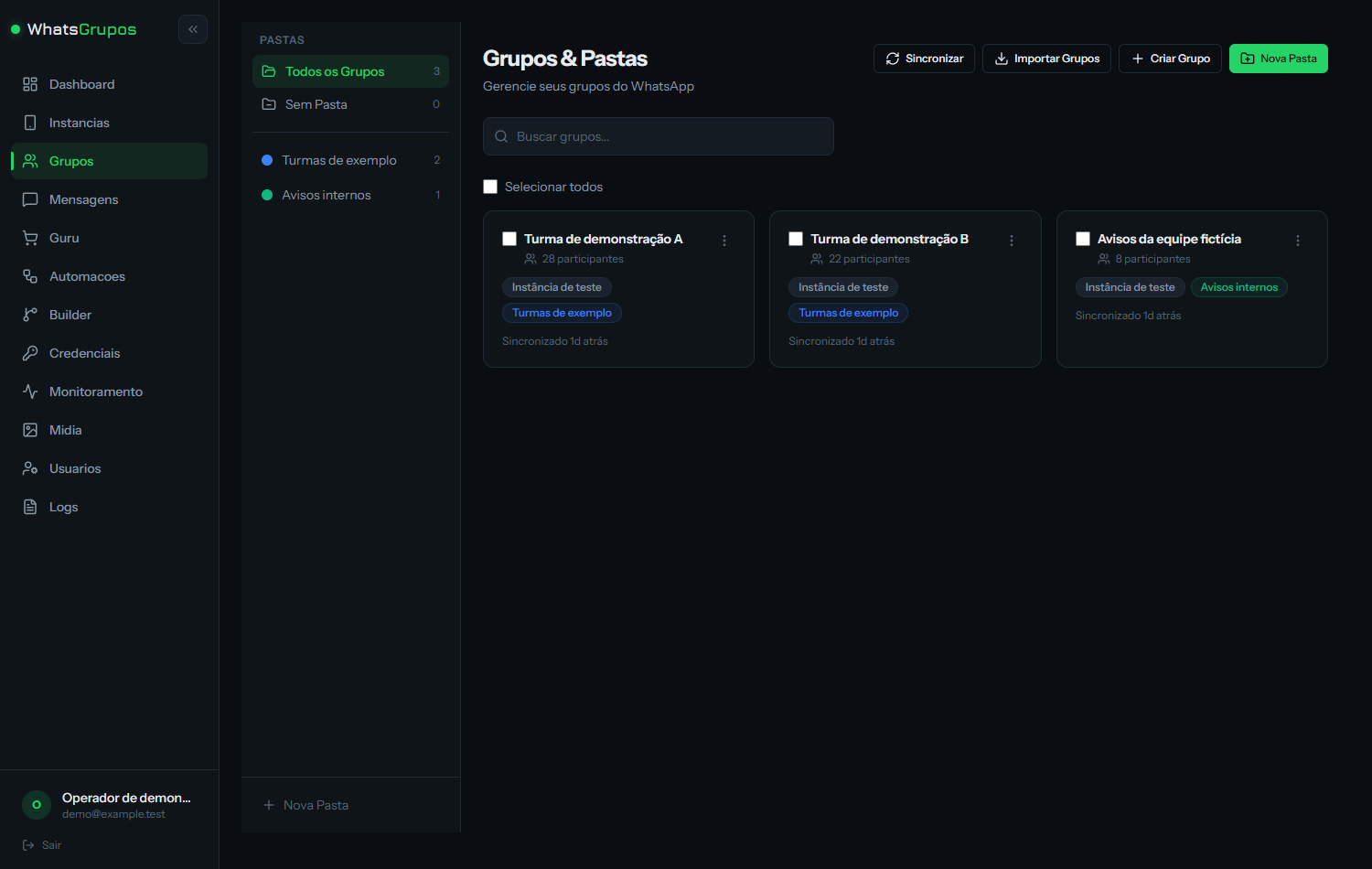
Tela demonstrativa do WhatsGrupos com três grupos e duas pastas fictícios; dados inventados para ilustrar a interface.
Start with the instance and the destination
Think of an operation that has a number for student notices and another for a support team. If both appear on the same list, the name of the group alone is not enough to decide where the communique will come from. I would start by naming the instance by its role, associating each group with it and using folders to gather groups of the same purpose.
Only then would I choose the message. A meeting notice for students should not go to an internal group; a support text should not be fired for everyone. On the screen, the search and folders help locate the destination, but the selection still needs one last human conference.
From organization to verified sending
Instance
Confirm which number will make the communication.
Groups
Review the selected folder and recipients.
Model
Read the text and links before use.
Test
Send in a controlled environment and track the registration.
Receiving
Confirm in the destination what has really arrived.
Three states that can't turn one
Configuration means that the instance, group and model are registered. Attempt to send means that the operation triggered a message. Delivery observed requires to check the registration and receipt. If one of these steps fails, a green card on the screen should not turn the claim that everyone has been warned.
Imagine that a welcome model is saved, but the selected instance has lost the connection. The text exists; the delivery, no. Or imagine that the shipment was registered, but one group was out of the selection. Monitoring helps investigate, but checking a test group is the simplest way to find this error before climbing.
There is also an item called Builder on the menu. The presence of this access in the interface does not prove that a new visual constructor executes all the desired flows. That part still needs validation of its own. What I can present today safely is the organization of instances, groups, models, submissions and monitoring, without promising a specific automation that has not been tested.
A small test before speaking with many groups
I would choose an instance, a test group, and a short model. I would check the text, destination and links. Then I would check the record of the attempt and ask someone in the group to confirm receipt. Only then would it extend the selection, keeping a clear responsible for reviewing models and destinations.
This routine seems simple, but it solves the question that matters most in an operation with many groups: not just what was scheduled to happen, but what actually happened.
Read the group screen without confusing registration with result
In the capture, the left column shows All Groups, No Paste and two example folders. On the right appear three cards, each with group name, illustrative number of participants, associated instance, folder and synchronization information. The top bar offers search and actions to sync, import, or create group and folder. It is a good photograph of the organization that the operator needs to see before acting.
It also shows an important limit. The number next to a folder indicates how many groups are on that demo list, not how many people have received a communication. “Synchronized” informs the state displayed for the registration, does not confirm that a future message will be accepted by the instance. The groups, numbers and dates of the image were invented to show the interface; they are not customers, real classes or campaign metrics.
One detail I would always check is the combination group + folder + instance. If two classes have similar names, the folder helps filter, but the instance still defines which account the message comes out. The reverse is also true: choosing the right account does not prevent an internal group from mistakenly entering a wide selection.
Example: warn a time change
Suppose two classes need to receive a schedule change tomorrow. First, I would identify the two groups by the folder and check the instance shown on each card. Then I would write a short message with date, old time, new schedule and a channel of doubt. Before selecting all, you would send the text to a test group administered by the team.
The test has two separate checks. In WhatsGrupos, I would observe if there was a record of trial or error. In the target app, someone would confirm if the text and links arrived complete and if the sender account was expected. If the message depended on a link, I would open that link on my mobile. Only then would he repeat the process with the planned classes and record which groups entered the final selection.
If a group did not receive the warning, I would not mark the entire operation as completed. It would investigate the connection of the instance, the selection of the recipients and the registration of that submission. This method prevents “sending to everyone” from turning into a print based only on the operator’s click.
Checklist before extending a shipment
- Is the connected instance the account that should speak to those groups?
- Do the folder and group names match the audience of the message?
- Does the text contain a single clear action, correct date and tested links?
- Did the test group receive the final version, including media or formatting when there is?
- Does monitoring distinguish attempt, error and confirmation observed at destination?
Common doubts
Does a folder ensure that all groups will receive the message? No. No. She organizes the selection. Delivery depends on the instance, the attempt to send and the conference of the receipt.
Can I use the number of card participants as a range? No. No. It describes the group in the demonstrative interface; it does not measure people who have read a specific message.
When does it make sense to use a model? When the text repeats and needs consistency. Even so, I would review dates, links, recipients, and context before each use.
This guide is part of the series 13 projects I created with Claude Code and Codex.